
Copy and paste events
Copy/paste lets you reuse an event setup somewhere else in your show — the same SFX in another scene, the same mic mute pattern at a different point, the same OSC trigger across multiple songs. The parameters carry over; you adjust the position.
How to copy and paste
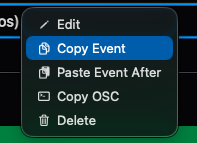
- Copy: Long-tap an event and select Copy Event.
- Paste: Navigate to the scene or song where you want the event to go.
- Long-tap an existing event and select Paste Event After — the new event lands right after the long-tapped one.
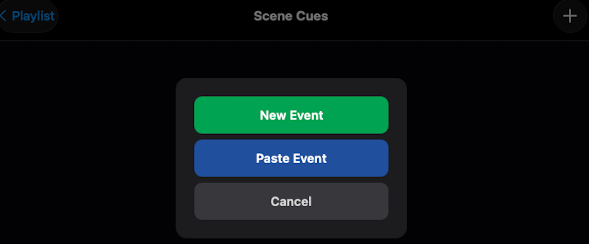
- If the destination event list is empty, tap + instead. Paste Event appears as an option alongside New Event.
Notes
- One event at a time. The clipboard holds a single event. Copying a new one replaces the previous copy.
- Pasting into a song. The new event inherits the timestamp of the event you pasted after — you'll typically want to change it. Edit the event directly or use the Waveform Editor to land it at the right moment.
- Pasting into a scene. Only MIDI events (mic toggles, SFX, snippet recalls, OSC triggers) can be pasted into a scene. Scenes have no audio timeline, so locator and conductor cues don't apply there.
- Copy OSC. Copies the incoming OSC command that triggers this event — the auto-cue address ShowPlayer listens for. Take it to the sending app (QLab, ROCS StageTracks, anything that sends OSC) and paste it into the outgoing OSC field there. Especially handy when authoring a show with ShowPlayer running on a Mac (Apple Silicon only) alongside the sending app, so OSC trigger pairing is just a copy and a paste away.