
Event list
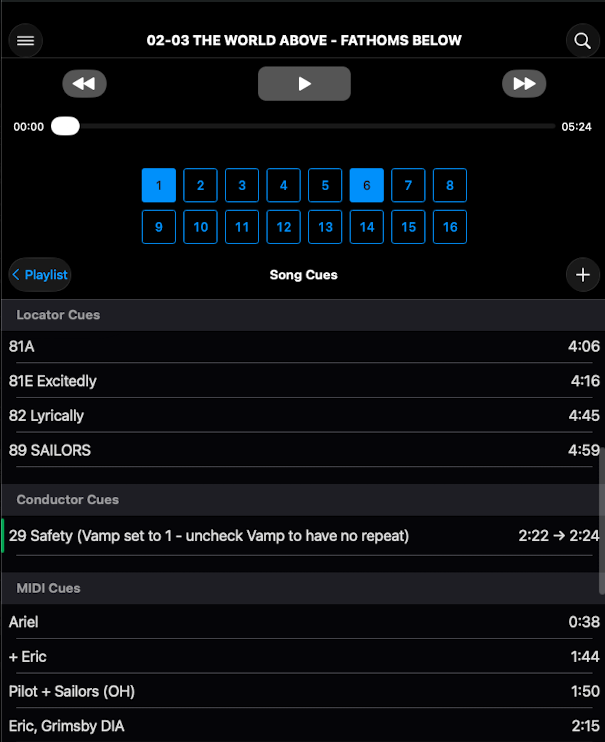
When you tap Details at the right end of a scene or song in the Playlist, the Event List opens. This is the view you will want to use during a run of the show or in rehearsals. This list shows every cue that fires during that song or scene. Mic mutes, sound effects, OSC triggers, conductor cues — all visible in one place. The Event List advances automatically and highlights the next item that requires the operator's input. At the end of a song, or when the last event in a scene has been triggered, the event list will move to the next song or scene.
How it works
- Events are grouped into sections by type: Locator Cues, Conductor Cues, MIDI Cues.
- Tap any event row to seek to that location and start playback from there.
- For songs, events within each section are listed in timestamp order.
- For scenes, events are listed in the order they occur in the script — drag to reorder. Each event in scenes is fired manually by a single tap on the GO button.
Notes
- What scenes can hold. Scenes have no audio timeline, so they only have MIDI Cues. MIDI Cues are multi-functional. They can set mic states, play sound effects or audio that plays in the background, fire OSC triggers or any combination of these. There are no locator or conductor cues in scenes.
- What songs can hold. Songs can have all event types — locator cues, conductor cues (Skip, Hold, Cut, Vamp, End, Attacca), and MIDI Cues placed at exact times on the audio.
- Overlay audio on songs. You can layer sound effects or sweeteners on top of a song's backing track. They go in the MIDI Cues section and fire at the timestamp you set.
- The list is the truth. What's in the event list is what fires during the show. There's no hidden cue stack elsewhere.