
MIDI events
MIDI events are the cue events that do something — change mic states, play a sound effect, fire a trigger to another piece of gear. Unlike conductor cues, which shape the timeline, MIDI events make things happen in the world. Scenes only carry this event type. Songs can carry them alongside locator cues and conductor cues.
What a MIDI event can carry
A MIDI event is a container. It can carry any combination of these payloads, and any combination can be present in the same event:
- Mic toggles. Set the mute / unmute state for the entire board. The board state you author on the event is what fires when the cue runs — a snapshot of which channels should be open and which muted at that moment.
- Snippet recall (X32 / M32). Recall a saved board configuration on a Behringer X32 or Midas M32 — a different EQ, FX, or routing setup for a specific moment.
- Audio overlay (play or fade). In a song, audio overlay plays on top of the backing track. In a scene, it plays standalone. The Fade action targets overlay audio that's currently playing — useful for tapering a long ambience track (rain, a thunderstorm, crowd noise) or ending an underscore on a precise cue.
- OSC trigger. Send a network command to QLab, an ETC lighting console, a video playback machine, or anything on your network that speaks OSC. Lighting cues, projection advances, and video triggers all fire from this payload.
Mic toggles always set the state for the whole board — there's no "mute one mic" action. One event might just update the mic states for a scene change. Another might update the mic states, play an underscore, and fire a projection cue to QLab — all on the same trigger.
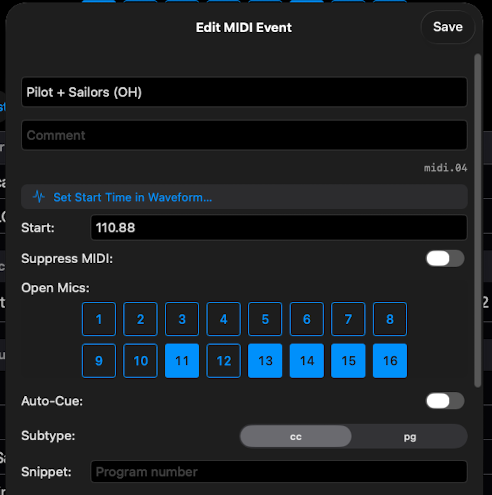
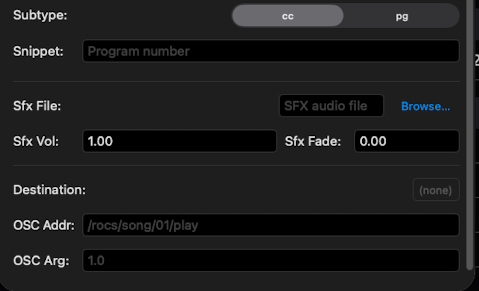
The two halves above are one editor — scroll down to reveal the SFX and OSC fields. All payload types live in the same form, so a single event can carry any combination.
Auto-cue for incoming OSC
In a scene, any MIDI event can be set to auto-cue — when ShowPlayer receives a specific incoming OSC message, the event fires automatically instead of waiting for the operator to press GO CUE. Useful when a stage manager is driving the show from QLab or another tool and you want ShowPlayer to follow.
Disabling parts of a payload
You don't have to delete an event to stop part of it from firing. Each payload has its own way to be disabled in place without affecting the others:
- Mic toggles — flip the Suppress MIDI switch in the editor. The mic toggle commands stop firing while audio and OSC payloads on the same event still run.
- Audio overlay — clear the audio file from the event. Without a file selected, no audio plays.
- OSC trigger — clear the OSC command. Without a command set, nothing fires on the network.
- Snippet recall — clear the snippet number. Without a number, no snippet is recalled.
To disable the whole event at once (so it's skipped entirely in the operator's GO CUE / GO AHEAD flow), see Disable a MidiEvent.
Notes
- One event, one moment. Each event fires at a single point — a timestamp on a song, or a position in a scene's event list.
- The "MIDI" name is historical. A MIDI event isn't only MIDI — it can carry audio and OSC too. The name reflects the original primary payload.