
OSC
OSC (Open Sound Control) is the network protocol theater apps and consoles use to talk to each other. ShowPlayer Pro speaks OSC in both directions.
How ShowPlayer uses OSC
Outgoing. Events in your show fire OSC commands to other gear when they run. A lighting cue lands on a downbeat. A projection trigger advances at a scene change. A video playback machine starts on the chorus. All from the same timeline that runs your tracks and mics. The OSC payload sits on a MIDI event alongside mic toggles, audio overlays, and snippet recalls — any combination can fire from one event.
Incoming. Events in scenes can wait to be triggered by an incoming OSC message. ShowPlayer listens on a port; when it receives a message matching an event's auto-cue address, that event fires automatically — no operator GO needed. Useful when a stage manager is driving the show from QLab or another tool and you want ShowPlayer to follow.
What ShowPlayer can talk to
OSC is widely supported in theater software. ShowPlayer Pro has been used with:
- QLab (sound, video, lights)
- ETC Eos lighting consoles (Ion, Gio, Element, ColorSource, Nomad)
- Chamsys MagicQ
- Resolume, Millumin, Mitti, ProPresenter (video / projection)
- Bitfocus Companion — speaks ~700 device protocols, so ShowPlayer reaches almost any console or media server through it
- ROCS StageTracks — ShowPlayer remote-controls StageTracks for backing-track playback alongside its own mic automation, between-song mic states, and sound effects. One iPad or iPhone runs the entire show. Pre-built packages ship with the OSC pairings between the two apps already in place — no manual trigger setup needed.
If a tool speaks OSC, ShowPlayer can drive it (outgoing) or follow it (incoming).
Setting it up
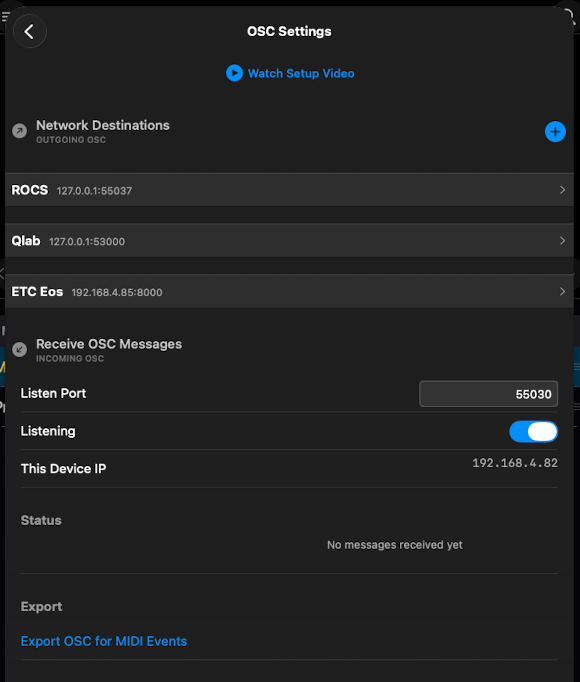
OSC configuration lives in the OSC Settings screen, reached from the main menu. The screen has three sections:
- Network Destinations (outgoing OSC) — named connections to the apps and devices ShowPlayer sends to. Each carries a name, IP address, and port. Tap + to add a destination. Once named, it's referenced from OSC payloads on MIDI events.
- Receive OSC Messages (incoming OSC) — set the Listen Port, toggle Listening on, and confirm This Device IP so the sending app knows what address to point at.
- Export — tap Export OSC for MIDI Events to grab the listen-side OSC commands for every event in your show. Useful when configuring a sending app to drive ShowPlayer.
Network requirements
- Same network. OSC doesn't traverse subnets gracefully. ShowPlayer and the other app should be on the same Wi-Fi network or wired LAN.
- Wi-Fi is usually fine. The iPad's port is typically already in use for USB to your mixer (audio + MIDI), so a wired Ethernet adapter isn't usually practical. In real-world use, Wi-Fi handles OSC reliably alongside the other traffic on the same network.
- Test under load. A Wi-Fi network that works in a quiet rehearsal room can flake when the audience arrives with their phones. Run a full pass with the audience network active.
- Document the addresses. Tape a card to the back of each device with its IP and ports. Networks shift; institutional memory shouldn't.
Related
- MIDI events
- Copy and paste events — Copy OSC for trigger pairing during show authoring
- Settings, Show Information, and Connections